Lagos Life Game Furniture: How to Move and Rotate It
Open Buy mode and select furniture you already own. Choose Move, drag or use the arrows to reposition it, rotate with R or the circular control, then confirm Done. Watch for warnings about blocked appliances before closing Buy mode. This walkthrough shows existing chairs being rearranged inside a Lekki flat.
On this page
How do you rearrange furniture you already own?
Buy mode handles both catalogue purchases and rearrangement. To move an existing item, select it in the room and choose Move. The preview controls let you reposition, rotate and confirm it without starting another catalogue purchase. This guide concentrates on those controls; renting and furnishing a home covers the earlier move-in and buying flow.
Source and review: the screenshots come from Lagos Life: What To Do First + How To Decorate Your House by Samuel Awoyemi H-QTV, published 2026-10-07. We read its full transcript and checked these five frames on 2026-10-14. The pictures are from that older recording, not our own live-account test. Each caption links to its exact source second, and the written instructions are ours.
Step 1 — How do you select an existing piece of furniture?
At home, open Buy and select the item in the room. The recording selects an already placed Lounge Armchair. Its item menu has Move, Turn, Store, Close and Sell. Choose Move for a new position; the other buttons are separate actions, and this excerpt does not demonstrate storing or selling.
The visible resale amount belongs to the old recording. You do not need to use Sell to rearrange the room. Keep your rent money separate when deciding whether to buy anything new.
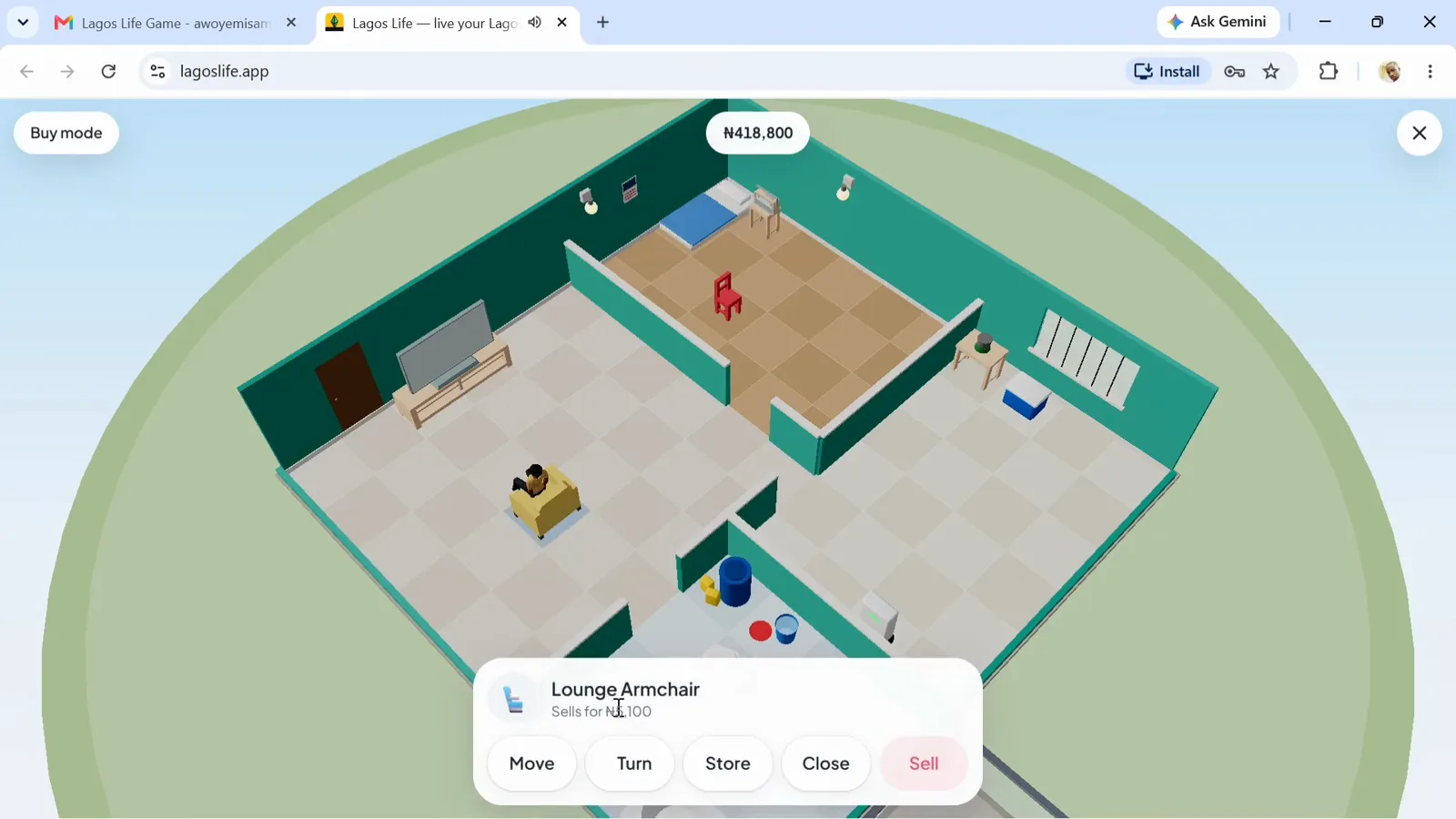
Select the furniture in the room to open its own action menu. (4:49 in the video)
Step 2 — How do you move the selected item?
Choose Move. The preview panel names the item and states Drag or arrow keys move. You can also use its onscreen directional arrows. A highlighted footprint follows the proposed position, while Done and Cancel remain available.
The recording moves the armchair around the living room. Choose where you want it before confirming: the preview is a chance to adjust the layout, not a reason to keep buying another chair.
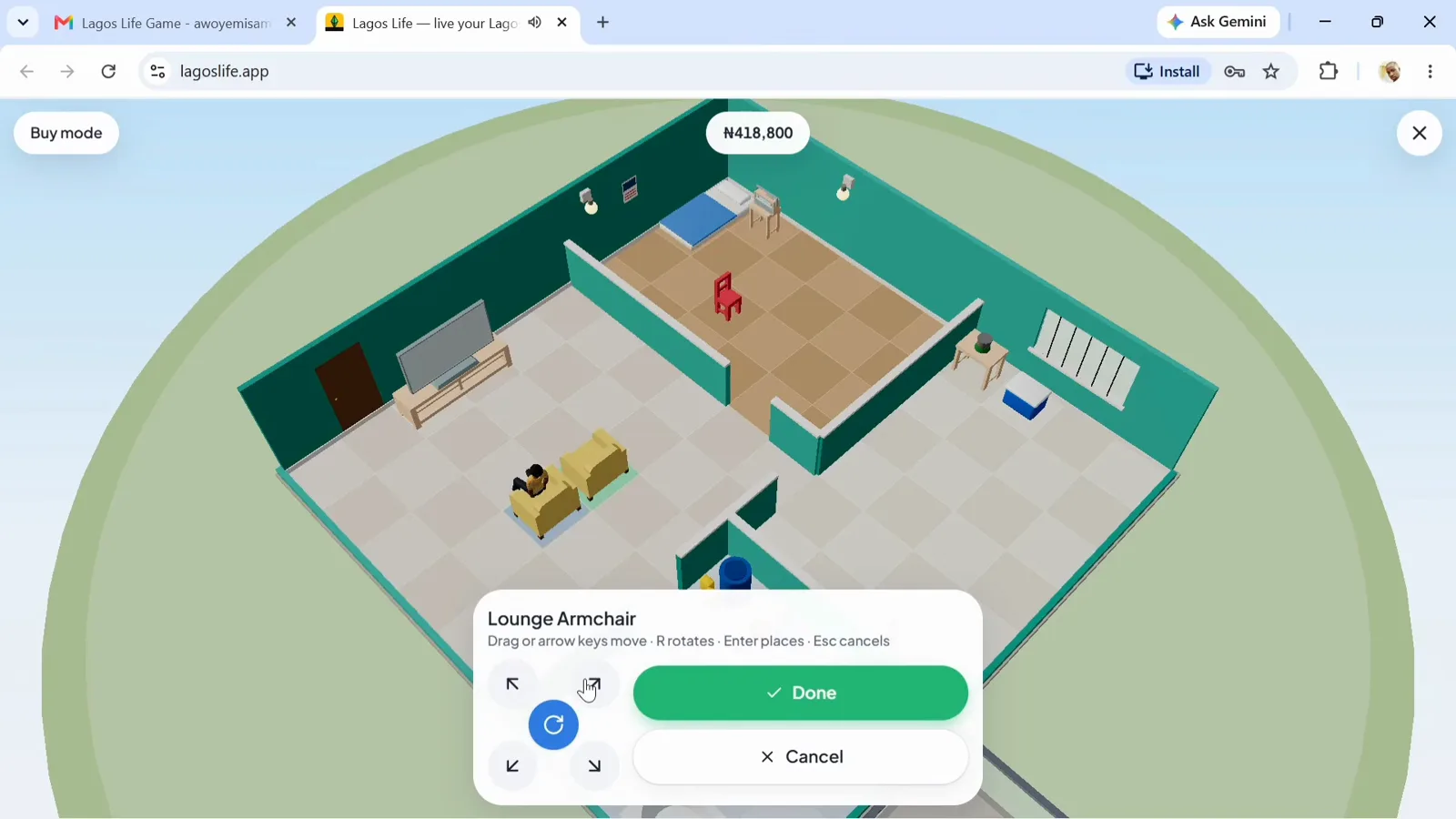
The move preview keeps the controls visible while you try a position. (4:55 in the video)
Step 3 — How do you rotate and confirm the furniture?
Use R on a keyboard or the circular rotate control in the panel to change the furniture’s direction. The help line also says Enter places and Esc cancels. In the existing-item flow, the green confirmation button is labelled Done.
Confirm only once the orientation and position are useful; choose Cancel if you want to abandon the preview. The recording revisits the chair’s position several times, showing that arranging a room can take a few adjustments.
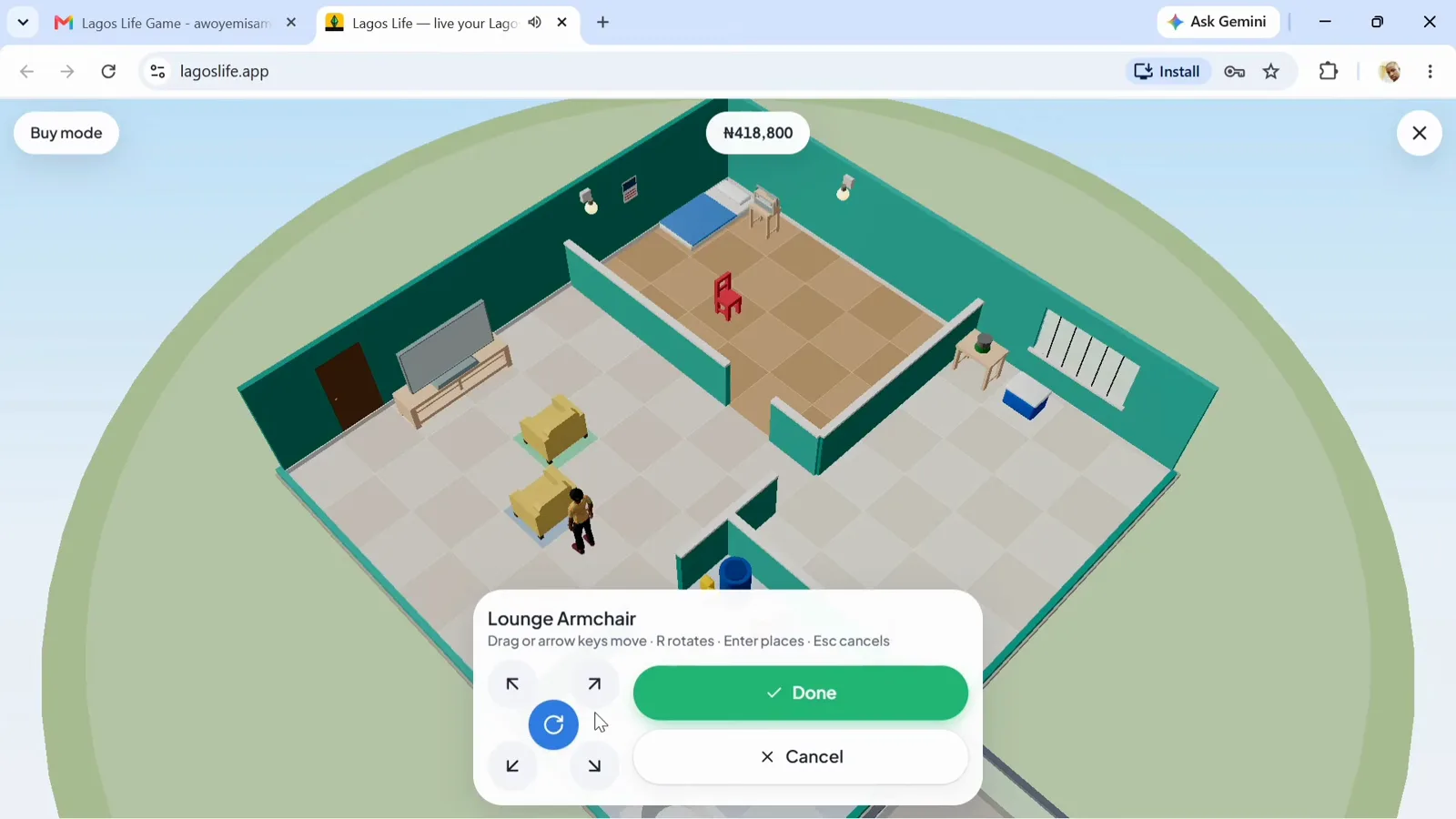
The same panel handles orientation and final confirmation. (5:05 in the video)
Step 4 — What does the blocked-stove warning mean?
Next, the player selects a Plastic Chair. At this proposed position the panel warns: Heads up: this blocks the way to your kerosene stove. A layout can look tidy and still stop your Sim reaching an appliance.
Treat that warning as a reason to try another position before confirming. For the related Can’t reach walk here message during an action, see the food and needs walkthrough. This frame shows an obstructed proposal, so it is not an example of a successfully cleared route.
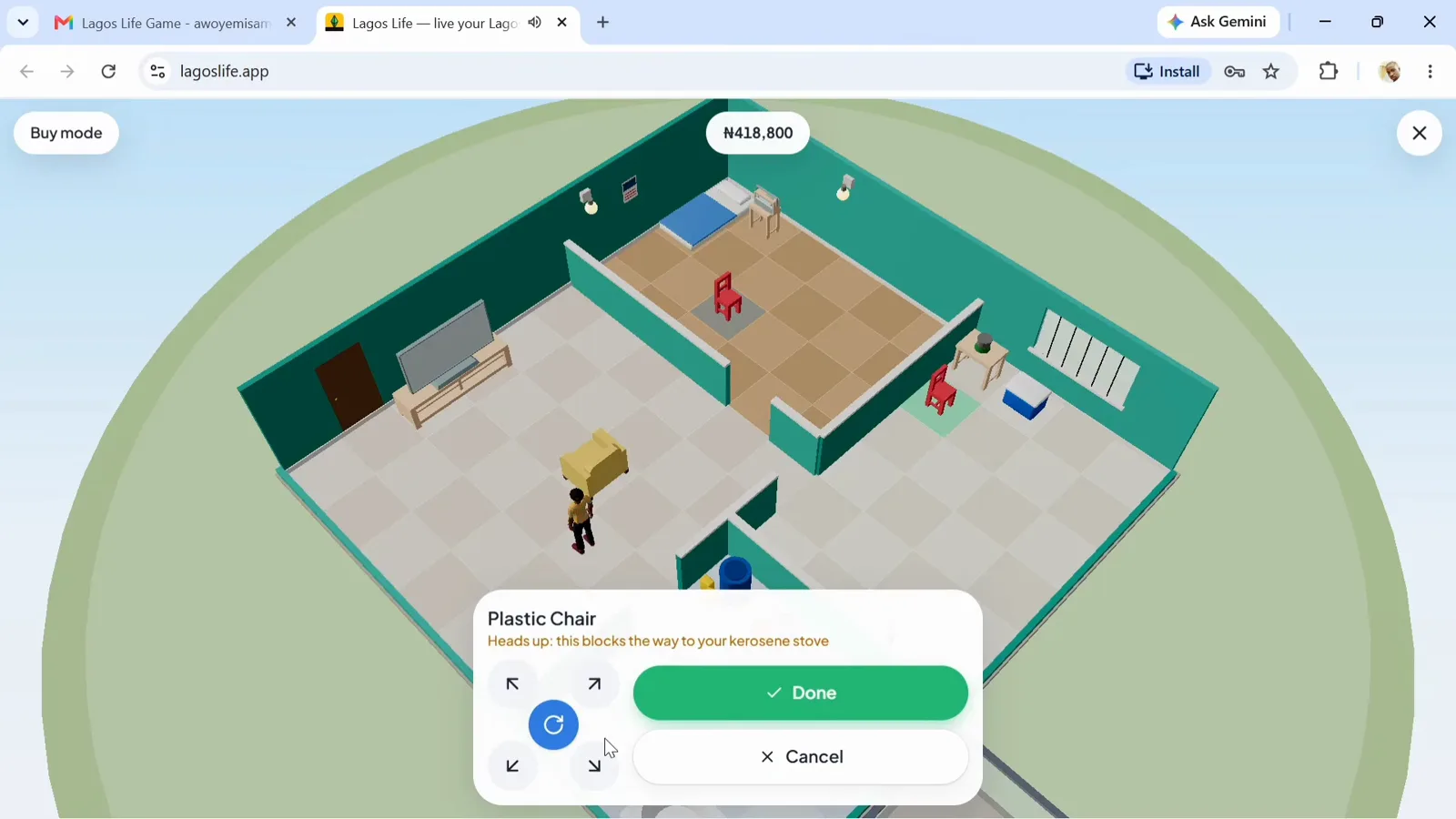
Read access warnings before you commit to a furniture position. (5:33 in the video)
Step 5 — How do you leave Buy mode?
After making the room changes, use the X at the top-right. The recording reaches this control after further decorating; the intervening fan and rug purchases are not required for rearrangement. The Buy mode label helps you recognise that you are still editing the room until you close it.
Then try the object you meant to use. This excerpt does not establish that every appliance is reachable in the finished layout. Check the route in your own room before leaving for a map journey or a shift.
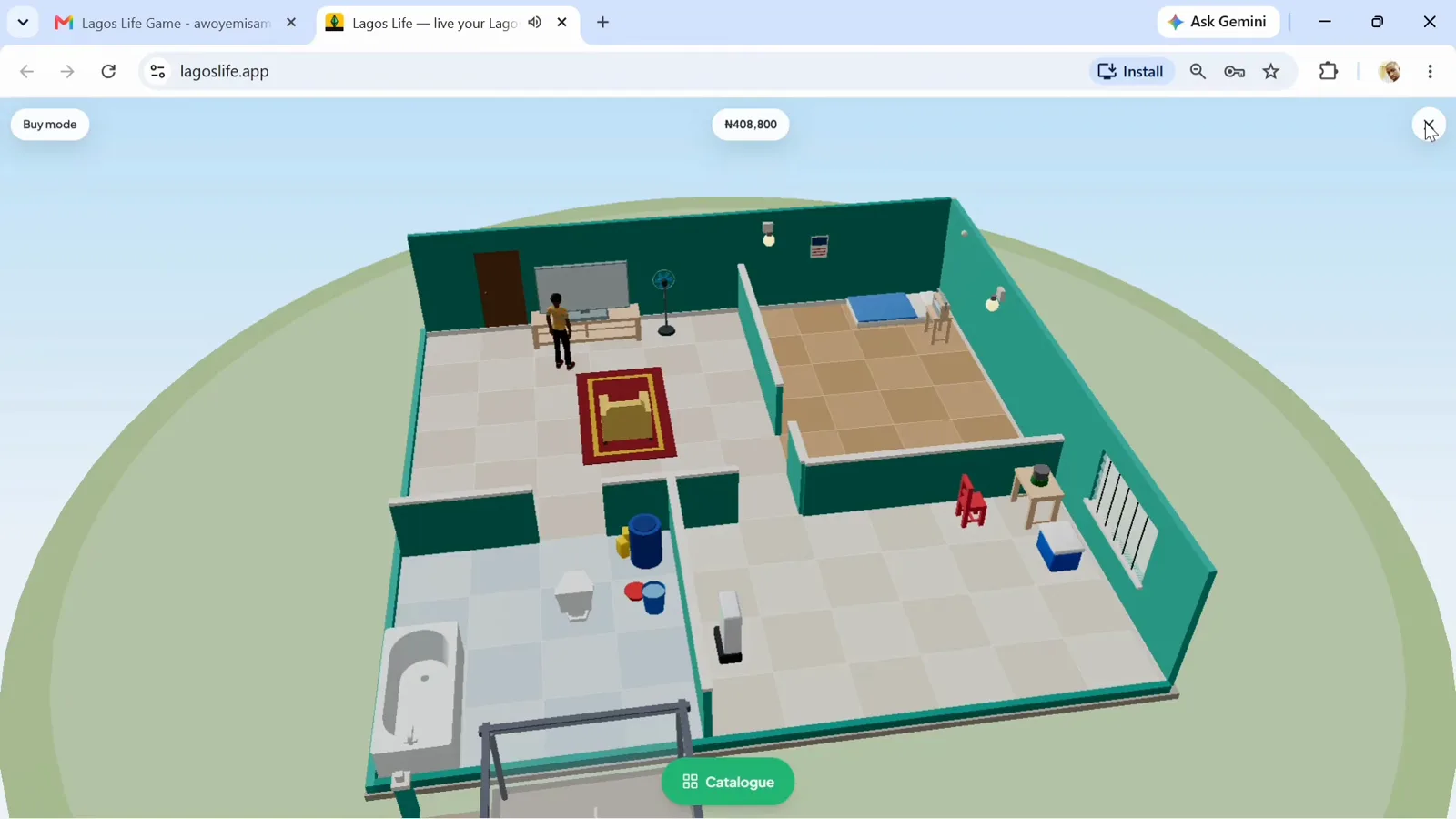
The X closes the room editor once your changes are finished. (7:29 in the video)
Where should you go next?
If you are planning a different address, compare homes and weekly rents first. If you are staying put, check the food, hygiene and rest controls that the furniture needs to leave accessible. The beginner guide ties those actions back to the daily play loop.
Frequently asked questions
How do you move furniture in Lagos Life Game?
In Buy mode, select the existing furniture and choose Move. The placement panel says drag or arrow keys move, R rotates, Enter places and Esc cancels. Its green Done button confirms the change.
How do you rotate furniture in Lagos Life?
The move panel shows a circular rotate control and states that R rotates. An owned item's first menu also offers Turn. This recording demonstrates the move panel while rearranging chairs.
What is the difference between Place and Done?
The recording shows Place while positioning a new purchase, and Done while moving an existing chair. For rearrangement, select an item you already own and use Move rather than choosing another catalogue purchase.
Why does a chair block the stove in Lagos Life?
At one proposed chair position the panel warns that it blocks the way to the kerosene stove. Pick a different position and check the warning again before confirming. This page does not claim that every object has the same access rules.
Related pages
Lagos Life Game Map Guide: How to Travel and Go Home
Use the Lagos Life Game map in six pictured steps: find a destination, compare transport, tap Go, arrive at a venue and choose a ride back to your home.
Lagos Life Game UNILAG Guide: Student Start, Halls and Exams
Choose the UNILAG student start in Lagos Life Game, budget for hall rent, enrol later, unlock exams and see what your degree changes after graduation.
Lagos Life Game Needs: How to Eat, Wash and Rest at Home
Find food, hygiene and rest actions in Lagos Life Game with five pictures of the cooler, water drum, blocked paths, mattress menu and Wake up button.
Was this helpful?